How to read PowerPoint speaker notes aloud
Direct answer: Import a PPT or PPTX into Tingbo, open slide one, and tap Play. The app reads the current slide's speaker note aloud, then automatically advances to the next slide.
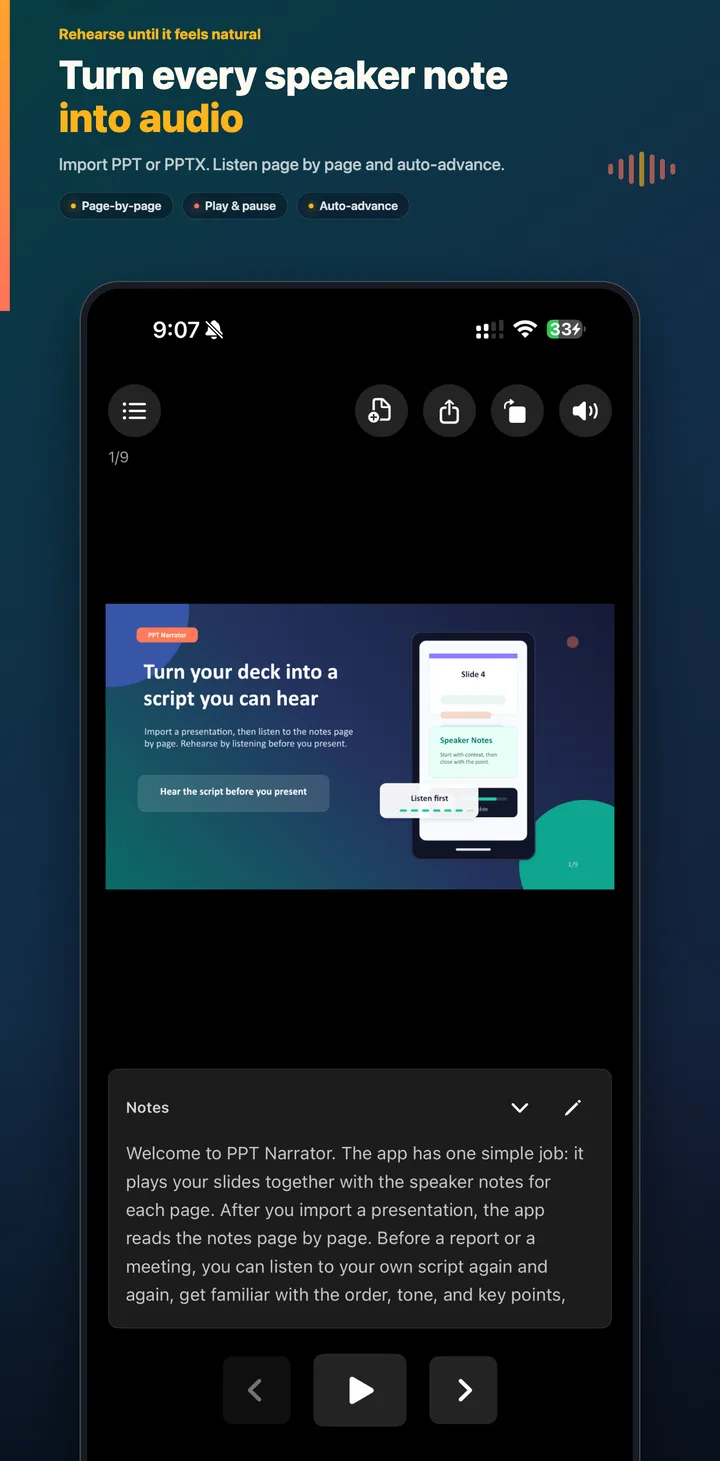
1. Add notes to the presentation
Open the deck in PowerPoint and place the words you plan to say in the Notes area below each slide. Keep each note focused on that page. Tingbo uses this note text as the narration script.
Save the file as PPTX when possible. Legacy PPT files are supported through conversion. A Keynote .key file must first be exported from Keynote as a PowerPoint file.
2. Import the PPT or PPTX
Open Tingbo and choose Import presentation. Select the deck from Files, AirDrop, Mail, or another document provider available in the iOS file picker. Tingbo opens the presentation and pairs every slide with its note.
Some image-based PPTX decks can be parsed on the device. A PPT or PPTX with editable slide layouts may need a rendering conversion before it can be displayed accurately.
3. Tap Play on the first slide
Playback starts only when you tap Play. Tingbo reads the current slide's notes with the device's system speech voice. At the end of the note, it advances to the next slide and continues.
Use Pause when you want to stop and think. Previous, Next, and Replay let you focus on a specific part of the deck without losing the presentation order.
4. Edit any line that sounds awkward
Listening exposes wording problems that are easy to miss while reading silently. Open the notes panel, select Edit, change the sentence, and save. Replay that slide to check the revised rhythm and meaning.
5. Listen through the deck two or three times
One pass helps you catch mistakes. Repeating the whole deck helps you remember the sequence, transitions, and key points. Background playback and headphones let you rehearse without keeping the presentation on screen the entire time.
Common reasons notes are not spoken
- The slide does not contain text in its speaker-notes area.
- Device media volume is too low or audio is routed to another output.
- The deck is still being converted and is not ready to play.
- The Keynote file was selected directly instead of being exported as PPTX first.
Have a Google Slides deck? Follow the Google Slides speaker notes guide to export it as PPTX before importing it into Tingbo.
Looking for a mobile reader? See the PPT notes reader for iPhone guide.