How to hear Google Slides speaker notes on iPhone
Short answer: export the presentation from Google Slides as a PowerPoint file, then import the PPTX into Tingbo. Tingbo reads the notes for the current slide and advances when the narration finishes.
1. Add speaker notes in Google Slides
Open your presentation in Google Slides and add the words you plan to say in the speaker-notes area below each slide. Keep the note focused on the slide it explains. A good note gives the audience context that is not already visible on the slide.
2. Download the deck as PowerPoint
In Google Slides, choose File → Download → Microsoft PowerPoint (.pptx). Google Slides exports the presentation as a PowerPoint file. Save the downloaded PPTX somewhere you can reach from the iPhone Files app, such as iCloud Drive, or send it to the phone with AirDrop or Mail.
Tingbo is not a Google Slides plug-in and does not connect to your Google account. The export step keeps the workflow explicit: Google Slides creates the PPTX, and Tingbo handles mobile slide viewing and note playback.
3. Import the PPTX into Tingbo
Open Tingbo, choose the presentation import action, and select the exported PPTX from Files. Review the slides and notes after import. If a deck needs rendering conversion before it can be displayed accurately, the selected file may be sent to the configured conversion service for that request.
4. Tap Play and listen slide by slide
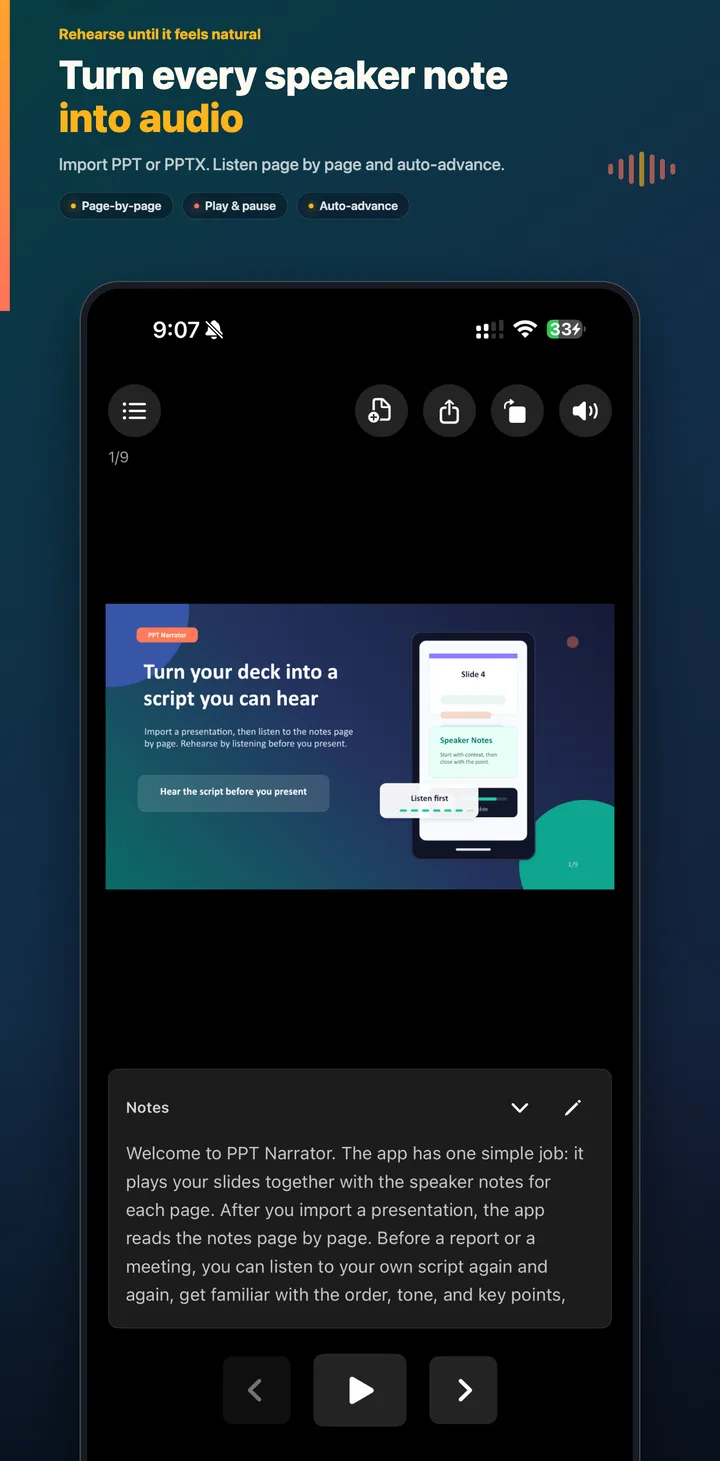
Open the first slide and tap Play. Tingbo uses the device’s system speech voice to read the current speaker note. When the note ends, the app can move to the next slide automatically. Pause, replay, or move manually when you want to focus on one section.
5. Edit what sounds awkward
Listening catches problems that silent reading hides: long sentences, repeated words, missing transitions, and phrases that are difficult to say. Open the notes panel, edit the sentence, save it, and replay the slide. Then listen through the whole deck once more.
Common problems
- The exported file has no notes because the notes were not saved in the source presentation.
- The PPTX is still being converted and is not ready to play.
- The device volume is low or audio is routed to another output.
- The notes are too long to understand when heard once; split them into shorter sentences.