How to practice a presentation on iPhone
Short answer: import your deck, listen to the speaker notes slide by slide, and use three focused passes: completeness, wording, then flow. Hearing the script makes weak transitions and sentences that are hard to say much easier to find.
1. Prepare notes that can be spoken
Write the words you plan to say in the speaker-notes area of your PowerPoint or Keynote deck. Keep each note focused on the slide it explains. Short sentences, clear numbers, and explicit transitions are easier to hear than a paragraph copied from a report.
2. Import the presentation to your iPhone
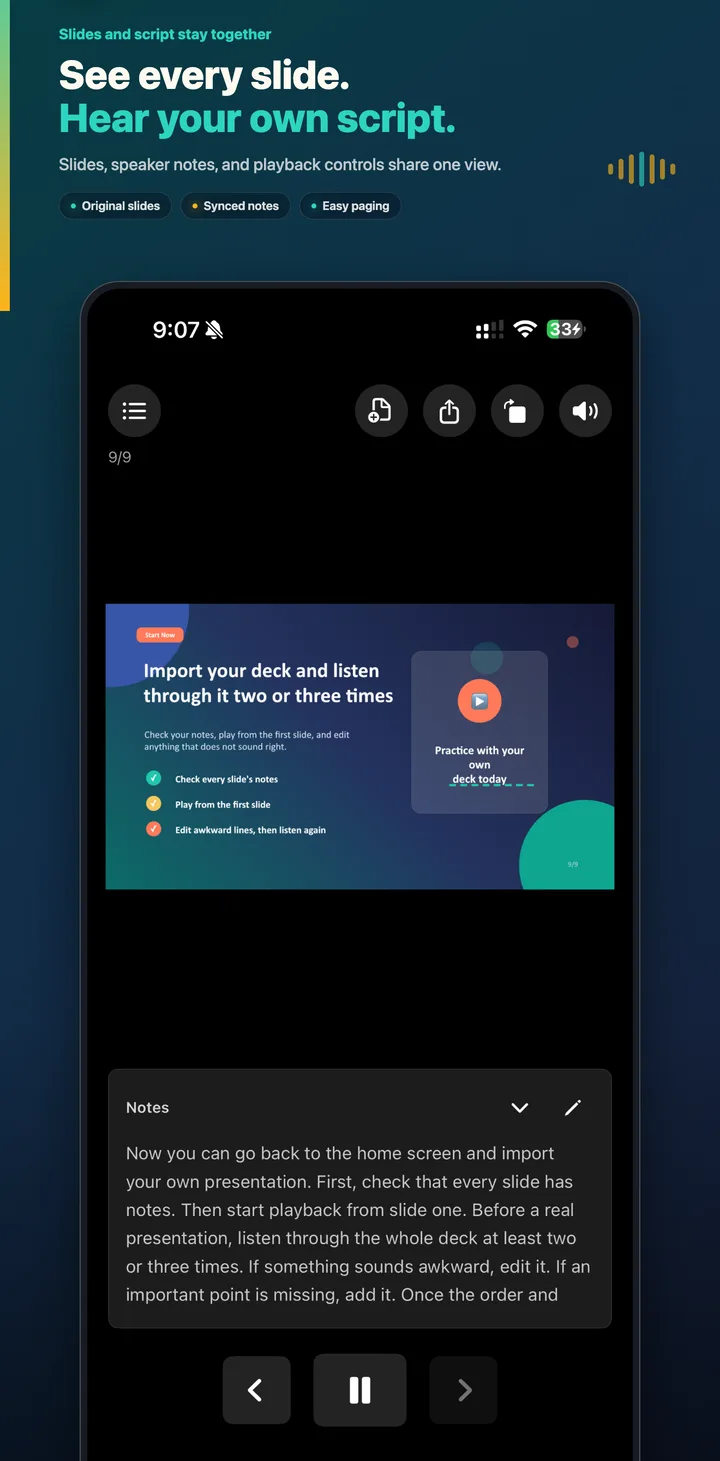
Save the PPT, PPTX, or supported Keynote file in Files, then open it in Tingbo. The app shows the slide and its notes together, so you can listen while checking whether the spoken explanation matches the visual cue. Tingbo does not need access to your presentation account.
3. Pass one: check completeness
Play the deck from the first slide without editing. Mark slides with missing notes, an unclear opening, or a jump in logic. The goal is to hear the whole story once, not to make every sentence perfect.
4. Pass two: improve the wording
Replay only the marked slides. Replace long sentences, repeated phrases, and words that are difficult to pronounce. If a sentence is hard to understand when heard once, simplify it—the audience will hear it once too.
5. Pass three: practice the flow
Play the full deck again with as few interruptions as possible. Look at each slide as it advances and listen for the connection between ideas. Confirm that the opening sets the purpose quickly and that the ending gives a clear takeaway or next action.
Practice away from your desk
Headphones and background playback make a second or third pass easy to fit into a walk or commute. Return to the screen when a slide needs editing, then replay that section immediately to check the change.
For the import steps, see the PowerPoint speaker notes guide. If your deck starts in Google Slides, export Google Slides speaker notes to PPTX first.